De-Mystifying Google Analytics: Geographical Data Import
A few months back, Google Analytics snuck in a new powerful feature with their announcement of Geographical Data import. The announcement wasn’t big, but the impact on your data collection could be.
Data import is a feature that has been part of Google Analytics for a few years now, allowing you to import offline data and marry it to your web analytics. Some people have used this feature to upload costs of direct mail campaigns or add author names as a dimension within their blogs.
But with the introduction of geographical data import, users of Google Analytics are now going to be able to customize regions of the world or the country based on region ID codes. That is to say, if you want to breakout the United States into your sales regions (i.e. Midwest, Southeast, etc.) you can now import what states should be included within each and then segment data by region.
So how do you implement this feature into your Google Analytics setup?
- Determine your regions
For most U.S. companies, a simple breakout of the map by states can give you insight into your users. But if you can, we recommend breaking this out by your top sales regions for greater insight. In the example we’ll show here, we’ve split the country into eight regions: West, Southwest, Rocky Mountains, Plains, Great Lakes, Southeast, Mideast, and New England.
- Look up Google’s region IDs for each state
This can be done quickly by heading to Google’s Geographic Targeting tool and typing “US” in the last open box, followed by selecting State in the right hand drop-down menu (see below).
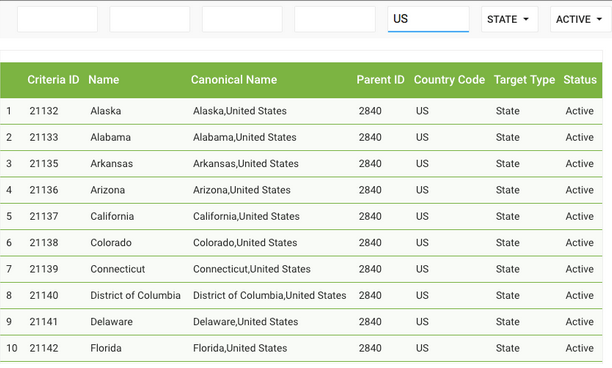
This will then display all states along with a column called Criteria ID, which is what you’re looking for.
- Tie region ID and state name together in a spreadsheet
Open a new sheet and create three columns: one for the Criteria ID, one for the State Name, and one for the Custom Region Name you want to use). So to continue our example, we’d have a row matching up these cells: 21132, Alaska, West. From there, you can delete the State Name column and save.
- Set up a new custom dimension in Google Analytics
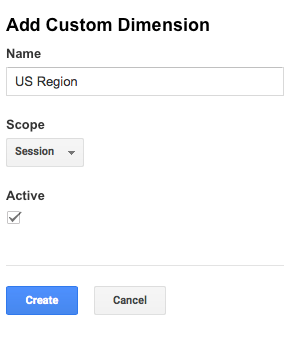
You’ll need a new custom dimension in GA for sales region. The way to set it up looks like this:
- Upload the data to Google Analytics via data import
Once you’ve added the custom dimension, the final step is to import the data to your GA account. You’ll do it like this:
.webp)
And that’s it. Now that you have your new Sales Region custom dimension, you have the ability to segment your users and their data by your customized regions (city, state, or country).
The benefit of this feature is that it helps you further understand the behavioral differences between users in different locations. You can use it to increase engagement and conversion rates across your website by:
- Driving users to regionalized landing pages, with specific features they want and need
- Serving dynamic content throughout the site
- Displaying higher selling items in a particular region to users in that region
- Any other use case you may have
That’s why we’re excited about this feature, and we think you will be too. Follow the steps above and see how Geographical Data import can increase your conversions. And remember, as a Google Analytics Certified Partner, Hanson is always here to help with Google Analytics implementations and enhancements—contact us for more information.
In case you missed it, check out the last installment of our De-Mystifying Google Analytics series: Internal Site Search.